
How to Add a White Background to Any Photo (for e-commerce)
Step-by-step guide, no design skills required
Marketplaces like Amazon, Walmart, and Alibaba require a pure white background (RGB 255, 255, 255) for the main listing image. A photo with any other background — light grey, off-white, blue — will be rejected. The fix is a 60-second background-removal pass in BGRemover, which produces a transparent PNG, followed by a 30-second composite onto pure white. The result is a marketplace-ready image that meets every spec.
Loading upload service...
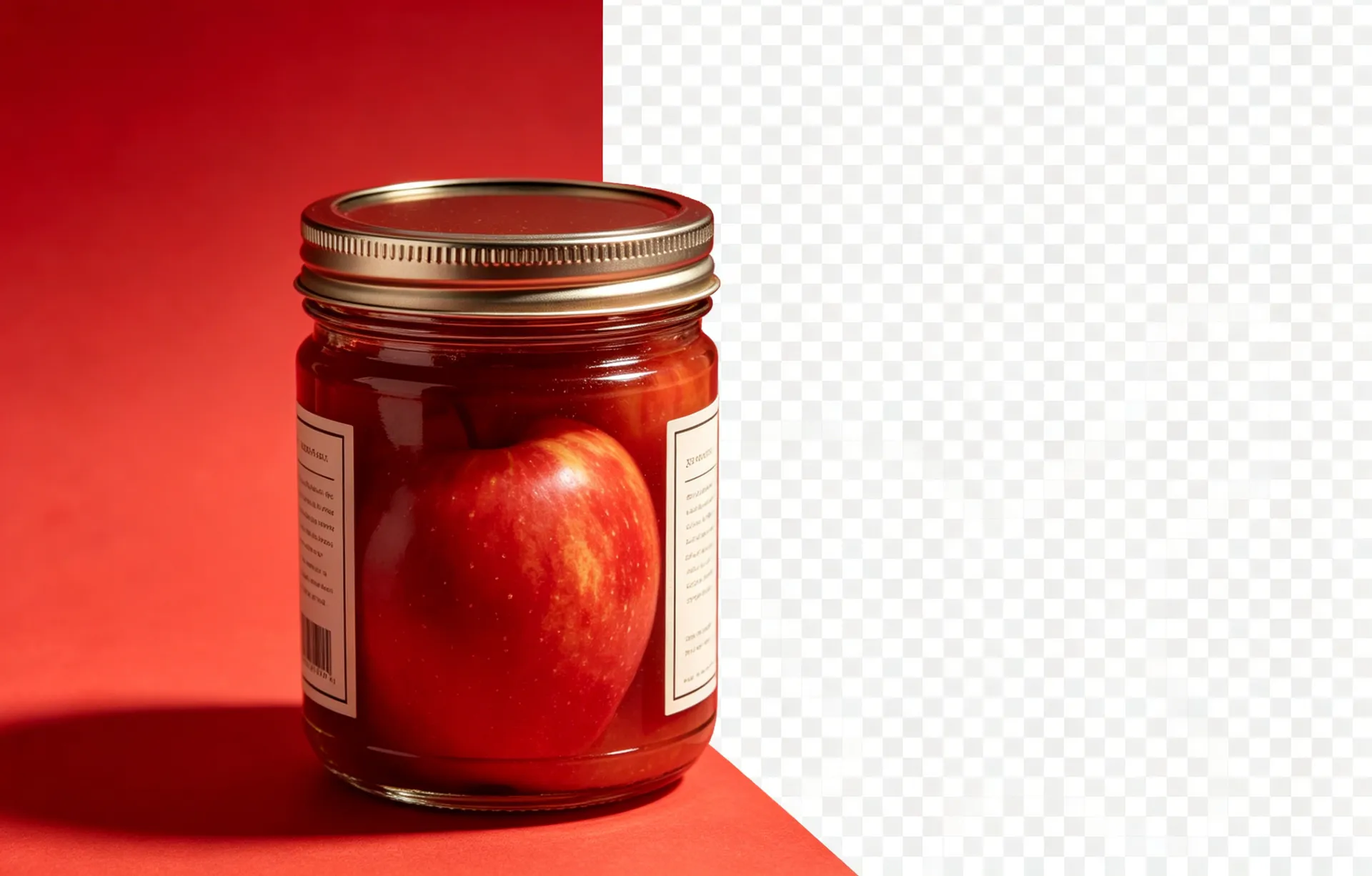
Marketplace listings on Amazon, Walmart, Alibaba, eBay, and Etsy all have one image requirement in common: the main listing photo must be on a pure white background (RGB 255, 255, 255). A photo with any other background — light grey, off-white, blue, patterned — will be rejected by the platform's auto-check. This guide covers the exact workflow to produce a marketplace-ready image in under two minutes.
Why 'white' is not always 'white'
A photo taken against a 'white' wall is rarely pure white. JPEG compression shifts the pixels by a few values, lighting gradients add another shift, and any colour bleed from the subject adds a third. The result is usually 250, 250, 250 to 254, 254, 254 — visibly white, but not mathematically white. Amazon's auto-check inspects the background pixels and rejects anything that is not exactly 255, 255, 255. The fix is to composite the cutout onto a pure white background in BGRemover — the white is then mathematically exact, not an approximation.
Minimum pixel size for Amazon main listing image — required for the zoom feature to work.
What about coloured backgrounds (black, brand colour)?
Same workflow, different colour. Open the export panel, change the background from 'transparent' to 'solid colour', and enter the colour you want. For pure black (some product categories look better on black), enter 0, 0, 0. For a brand colour, enter the exact hex code. The composite is mathematically exact, so the colour you pick is the colour the file contains — no approximation, no shift.
Continue with these guides
How to Remove Background from a Product Photo
The full marketplace workflow, from source photo to Amazon-ready JPG.
Product Photo Requirements by Platform (2026)
Amazon, Shopify, eBay, Etsy — every spec on one page.
How to Create a Transparent PNG
When you need the master cutout for re-use on different backgrounds.
Step-by-step
Remove the original background
Upload the photo to BGRemover and let the AI produce a transparent PNG. The processing takes 5 seconds for a typical product photo. Inspect the cutout and refine the edges with the brush if needed — particularly for reflective metal, glass, and fine details.
Open the export panel and pick the background colour
In the export panel, change the background from 'transparent' to 'solid colour' and enter #FFFFFF (or 255, 255, 255). BGRemover will composite the cutout onto a pure white background. The white is mathematically exact, not an approximation — it matches the Amazon, Walmart, and Alibaba spec byte-for-byte.
Pick the right export size
Amazon requires at least 2000x2000 px for the zoom feature to work. Shopify recommends 2048x2048 px. Etsy and eBay are more permissive, but 1600x1600 px is a good minimum. If your source photo is smaller than the target export size, do not upscale — the result will be pixelated. Reshoot the source at a higher resolution or use a higher-resolution original if you have one.
Export as JPG or PNG
For Amazon, Walmart, and Alibaba, JPG is the recommended format (smaller file size, no transparency needed because the background is solid white). For Shopify and Etsy, PNG is acceptable and gives you a master file with transparency that you can re-use on different backgrounds.
Verify the white is exact
Open the exported file in any image editor and use the colour picker to check the background pixel. It should read exactly 255, 255, 255. If it reads 254, 254, 254, the composite has a slight off-white tint and the listing may be rejected. Re-export with the background colour set explicitly to 255, 255, 255.
Common questions
Quick answers about this workflow
Why does Amazon reject photos with a white background?
The 'white' in the photo is not pure white — it is 250, 250, 250 or 252, 252, 252 because of JPEG compression and slight variations in lighting. Amazon's auto-check inspects the background pixels and rejects anything that is not exactly 255, 255, 255. The fix is to composite the cutout onto pure white in BGRemover.
Can I use a transparent PNG with a white CSS background as a workaround?
For some platforms (Shopify, your own website) this works — the page background is white, so the PNG composites onto white. For Amazon, Walmart, and Alibaba, the file must be self-contained: the white must be in the image, not in the page background.
What about a coloured background (black, brand colour)?
Same workflow — pick the background colour you want in the export panel. For a pure black background (some product categories look better on black), enter 0, 0, 0. The composite is mathematically exact, not an approximation.
Ready to try it on your own image?
Free credits, no signup, no watermark. Upload your first photo and see the result in under a minute.