
How to Create a Transparent PNG (Free, No Photoshop)
Step-by-step guide, no design skills required
A transparent PNG is a PNG file with an alpha channel — the part of the file that controls per-pixel transparency. The 32-bit PNG format supports full 8-bit alpha, which means every pixel can be set to fully transparent, fully opaque, or any value in between. This guide covers the three main ways to create a transparent PNG, the common pitfalls, and the workflow we recommend for product photos, logos, and portraits.
Loading upload service...
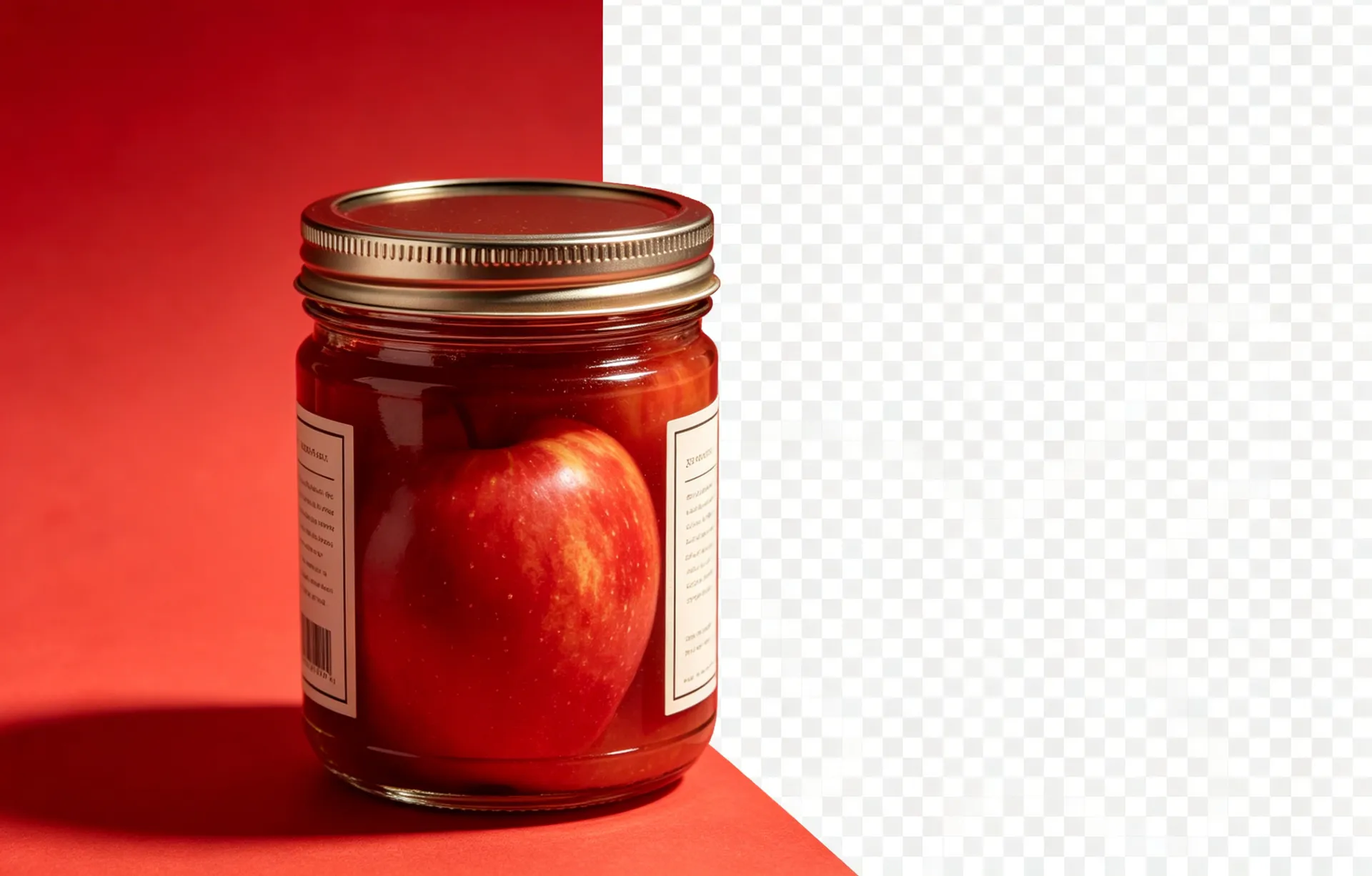
A transparent PNG is the most universally useful image format on the web. Every modern image editor, browser, design tool, and e-commerce platform reads it. This guide covers the three main ways to create one, the pitfalls that turn a 32-bit PNG into a 24-bit one, and the export settings that produce a clean, professional result.
What makes a PNG 'transparent'?
A PNG is transparent when it has an alpha channel — the fourth channel (after R, G, and B) that stores per-pixel transparency. A 24-bit PNG has only RGB and every pixel is fully opaque. A 32-bit PNG has RGBA; the alpha channel is what makes the background disappear. When you save a cutout from BGRemover, the output is a 32-bit PNG with full 8-bit alpha — every pixel can be set to any of 256 transparency levels.
The single most common reason a 'transparent PNG' is not actually transparent: the file was saved as 24-bit PNG, not 32-bit. The 24-bit format has no alpha channel. Always check the file properties in your image editor — Photoshop shows it as 'Channels: RGB' for 24-bit and 'Channels: RGB + Alpha' for 32-bit.
When to use PNG vs WebP
PNG is the safest format — every image editor, browser, and design tool supports it, including legacy software. WebP supports transparency, is 25–35% smaller for the same visual quality, and is supported by every modern browser. For the master file, use PNG; for web delivery, export a WebP version alongside. For print, the PNG is the master — printers and pre-press tools prefer it.
Continue with these guides
What is a Transparent PNG?
The deep-dive on alpha channels, file structure, and 24-bit vs 32-bit.
How to Remove Background from a Logo
Logo-specific workflow for the cleanest cutout on coloured backgrounds.
PNG vs JPG vs WebP: When to Use Each
Format-by-format breakdown for the web, print, and product photos.
Step-by-step
Pick the right source image
The source should be on a solid background (white, light grey, or any uniform colour). The AI uses the background colour as a hint for what to remove. A source on a busy background (a person standing in a crowd, a product on a patterned background) will produce a rough cutout with background bleed.
Upload to BGRemover
Open the workspace and drop the source image. The AI will detect the foreground subject and produce a transparent PNG. The processing takes 3–5 seconds for a typical 2000x2000 px image. The output preserves the original resolution — a 4000x4000 px source produces a 4000x4000 px transparent PNG.
Turn on the defringe option
The defringe option is the single most important setting for a clean transparent PNG. It removes the coloured halo that appears at the edge of semi-transparent pixels by replacing the edge colour with a fully transparent pixel. The result is a sharp, clean edge on any background the PNG is composited onto.
Export as PNG (not JPG, not WebP)
Choose PNG as the export format. JPG does not support transparency; the export will fail or be flattened to a white background. WebP supports transparency, but PNG is the most widely supported format across image editors, browsers, and design tools. Use PNG as the master; export WebP for the web if file size matters.
Verify the transparency
Open the exported PNG in any modern image viewer or browser. The transparent area should display as a checkerboard pattern. If the background is solid white, the alpha channel is missing and the file is a 24-bit PNG, not a 32-bit PNG with transparency. Re-export from BGRemover with the transparent background option enabled.
Common questions
Quick answers about this workflow
What is the difference between a 24-bit and 32-bit PNG?
24-bit PNG has only RGB channels (no alpha channel) — every pixel is fully opaque. 32-bit PNG adds an 8-bit alpha channel, which is what makes transparency possible. If your cutout has no transparency at all, you have a 24-bit PNG and you need to re-export from BGRemover.
Can I open a transparent PNG in any image editor?
Photoshop, Figma, Sketch, GIMP, and Affinity Photo all support transparent PNGs. Older tools (MS Paint, Preview on very old macOS versions) do not display the transparency and will show the background as white. For the most reliable display, open the file in a modern browser (Chrome, Firefox, Safari).
Does a transparent PNG have a larger file size than a JPG?
Yes, usually 2–5x larger. PNG is a lossless format; JPG is a lossy format. The trade-off is worth it when you need transparency. For web delivery, consider exporting a WebP version alongside the PNG — WebP is typically 25–35% smaller for the same quality.
Ready to try it on your own image?
Free credits, no signup, no watermark. Upload your first photo and see the result in under a minute.