
How to Remove Background from a Product Photo (Free, 2026)
Step-by-step guide, no design skills required
Product photo cutouts are the single most common background-removal job on the web. Marketplace listings (Amazon, Shopify, eBay, Etsy) all require a clean, transparent cutout with a solid background — usually white. This guide walks through the full workflow in BGRemover, from the original studio shot to a marketplace-ready PNG.
Loading upload service...
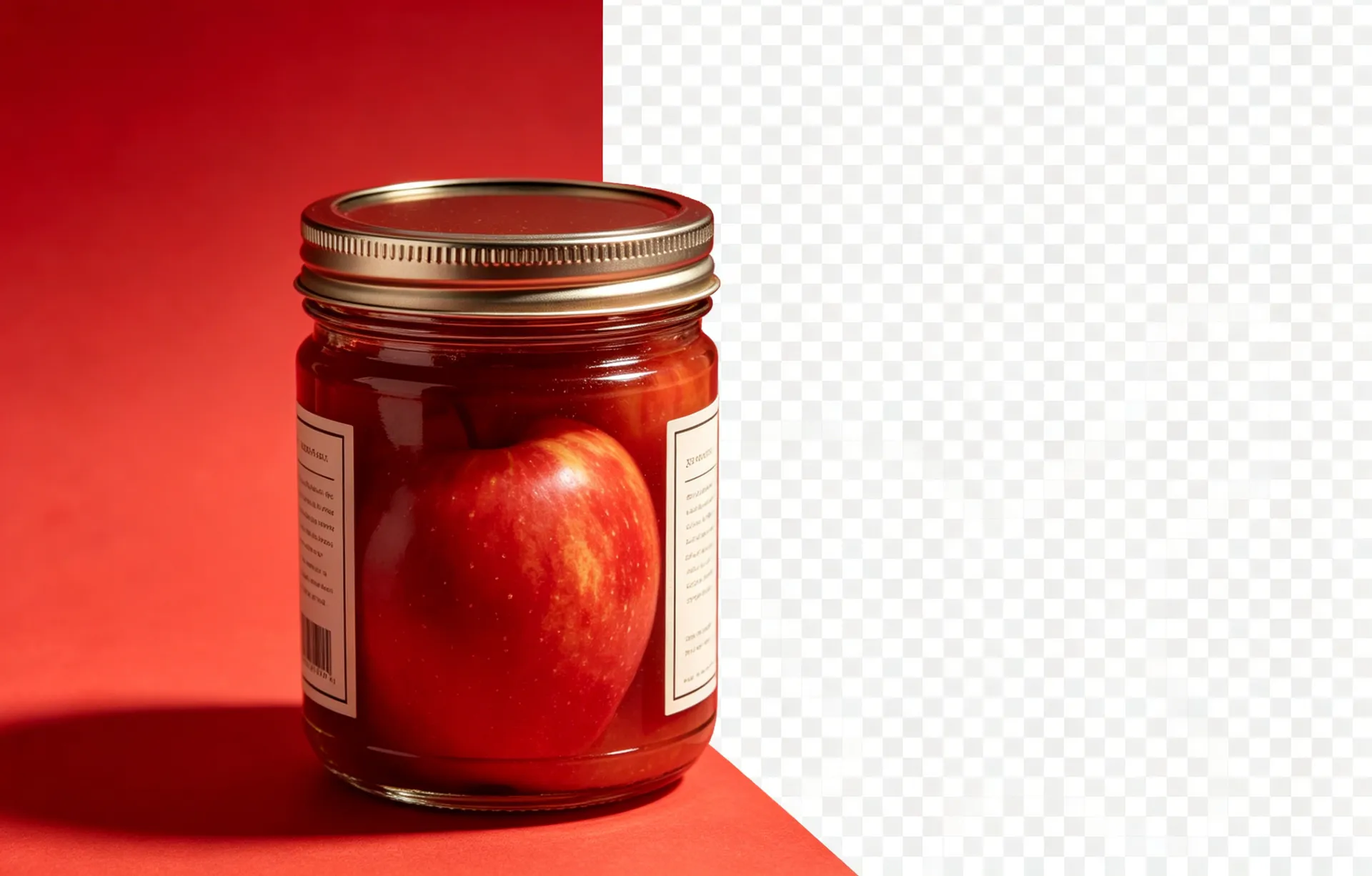
Product photo cutouts are the single most common background-removal job on the web. Marketplace listings (Amazon, Shopify, eBay, Etsy) all require a clean, transparent cutout with a solid background — usually white. Print-on-demand services (Printful, Printify, Gelato) require a transparent cutout to composite onto a T-shirt, mug, or poster. This guide covers the full workflow, from the original studio shot to a marketplace-ready file.
The source photo matters more than the tool
The cutout quality is limited by the source quality, so a 4000x4000 px source will produce a noticeably better cutout than a 1000x1000 px one. Use even, diffused lighting (a softbox or a window with a sheer curtain) and a solid background if possible; a busy background will force the AI to make more guesses and produce rougher edges. Avoid harsh shadows — they will leak into the cutout. A small amount of post-processing in a RAW editor (lightroom, capture one) before the cutout step will save time in BGRemover.
Average AI processing time for a typical 2000x2000 px product photo — 100x faster than manual Photoshop work.
Marketplace export specs
Amazon requires the main listing image to be 2000x2000 px minimum, on pure white (255, 255, 255), in JPG or PNG. Shopify recommends 2048x2048 px, accepts JPG and PNG. eBay requires 1600x1600 px minimum, accepts JPG and PNG. Etsy requires 2000x2000 px for the zoom feature, accepts JPG and PNG. For all four, the file must not have any text, logos, or watermarks on the main listing image. Save the transparent PNG as the master and export the marketplace-specific JPG from it.
Continue with these guides
Product Photo Requirements by Platform (2026)
Every spec for Amazon, Shopify, eBay, and Etsy on one page.
How to Add a White Background to Any Photo
The exact workflow for pure white (255, 255, 255) marketplace-ready images.
How to Batch-Remove Backgrounds from 100+ Photos
Drop a folder, walk away, come back to a clean cutout folder.
Step-by-step
Prepare your source photo
Start with the highest-resolution original you have — a RAW or a high-quality JPG. The cutout quality is limited by the source quality, so a 4000x4000 px source will produce a noticeably better cutout than a 1000x1000 px one. Use even, diffused lighting and a solid background if possible; a busy background will force the AI to make more guesses and produce rougher edges.
Upload to BGRemover
Open the BGRemover workspace and drag-and-drop your product photo. The maximum file size is 10 MB; for larger files, downscale the source to 4000x4000 px first. The upload takes a few seconds; the processing takes 5.
Review the AI cutout
The AI produces the first cutout in under 5 seconds. Open the before/after toggle and inspect the result. Most simple product photos on a solid background will be perfect on the first pass. Watch for: rough edges on reflective metal, missing transparency in glass or fabric, and a faint halo on darker backgrounds. All of these can be fixed in the next step.
Refine the cutout if needed
For any image that came out rough, use the brush tool to keep or erase specific regions. The brush has 4-px and 12-px sizes — start with the larger size to clear obvious misses, then the smaller size to recover edges. Undo history goes back 20 steps, so experiment without risk. For most catalog work, the refinement step adds 10–30 seconds per image.
Export for your marketplace
Choose your export format. Transparent PNG is the master — keep this for all future edits. White-background JPG is the marketplace-ready version for Amazon, Shopify, eBay, and Etsy. The JPG export automatically composites the cutout onto pure white (RGB 255, 255, 255) at the marketplace-required minimum size. Recommended export: 2000x2000 px JPG for Amazon, 2048x2048 px JPG for Shopify.
Common questions
Quick answers about this workflow
What is the best background colour for a product photo?
A solid white or light grey background produces the cleanest cutout. The AI uses the background colour as a hint, so a uniform background lets the model focus on the subject. Avoid backgrounds with strong gradients or busy patterns — they will leak into the cutout.
Why does my cutout have a coloured halo?
The halo is a side effect of partially-transparent edge pixels that still carry the original background colour. Turn on the 'defringe' option in the export panel; the AI will replace the halo colour with the colour of the adjacent opaque pixel.
Can I batch-process 100 product photos at once?
Yes. Drop the entire source folder into the BGRemover workspace and the AI will process them in parallel. Export each cutout with the marketplace-specific naming convention (sku_clean.png for the master, sku_white_2000.jpg for the marketplace version).
Ready to try it on your own image?
Free credits, no signup, no watermark. Upload your first photo and see the result in under a minute.