
How to Remove Background from Photo
A complete guide for beginners.
This guide will walk you through everything you need to know to remove backgrounds from your photos like a professional.
Loading upload service...
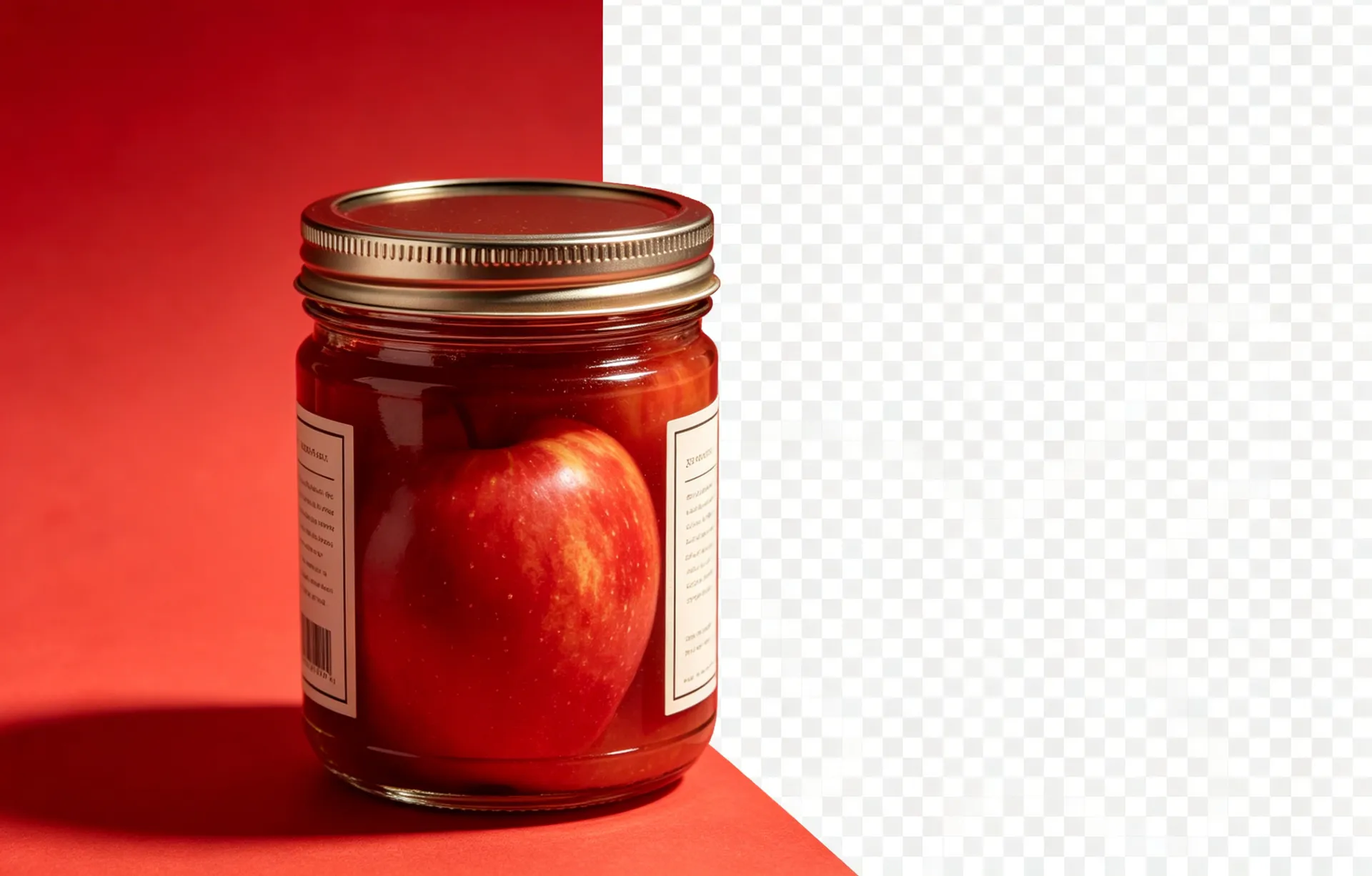
Background removal used to mean an hour in Photoshop with the pen tool, a steady hand, and a lot of undo. In 2026 it means dropping a photo into a browser tab and waiting five seconds. This guide covers the modern, AI-first workflow: which photos work, which ones don't, how to handle the rough edges, and the export settings that actually matter.
What is background removal, really?
Background removal is the process of isolating the foreground subject (a person, a product, a logo) from the pixels around it. The output is a transparent PNG — every pixel is either fully opaque (part of the subject) or fully transparent (part of the removed background). The transparent areas can then be composited onto any background: a white e-commerce backdrop, a coloured brand asset, a slide deck, or nothing at all.
AI background removers work for roughly 90% of the photos people upload — product shots, portraits, logos, signatures, simple scenes. For the long tail (medical imaging, satellite imagery, hair-by-hair composite work), the answer is still a human with a Wacom tablet and a few hours.
Common mistakes to avoid
The most common mistake is uploading a low-resolution source — the cutout quality is limited by the source quality, so a 600x400 px photo will produce a 600x400 px cutout. The second most common mistake is exporting as JPG; JPG does not support transparency, so the export is flattened to white. The third is skipping the defringe option, which leaves a coloured halo around the edges. Avoid all three and you will get a clean, professional cutout on the first try.
Continue with these guides
How to Create a Transparent PNG (Free, No Photoshop)
The companion guide — once you have a cutout, this is how you export it correctly.
How AI Background Removers Actually Work
A non-technical explanation of the segmentation models behind the tool.
How to Remove Background from a Product Photo
Marketplace-specific workflow for Amazon, Shopify, and Etsy.
Quick Steps
Upload Your Photo
Click the upload button or drag and drop your image onto the workspace.
Wait for AI Processing
Our AI automatically detects and removes the background.
Preview and Adjust
Check the result and use the output options if needed.