
Make sticker cutouts from any image
AI-powered background removal · Transparent PNG · Clean sticker outline
Loading AI tools...
Upload a portrait, pet, product, or object photo. BGRemover removes the background so you can export a transparent PNG sticker asset with a crisp outline for social posts, chat apps, thumbnails, and design files.
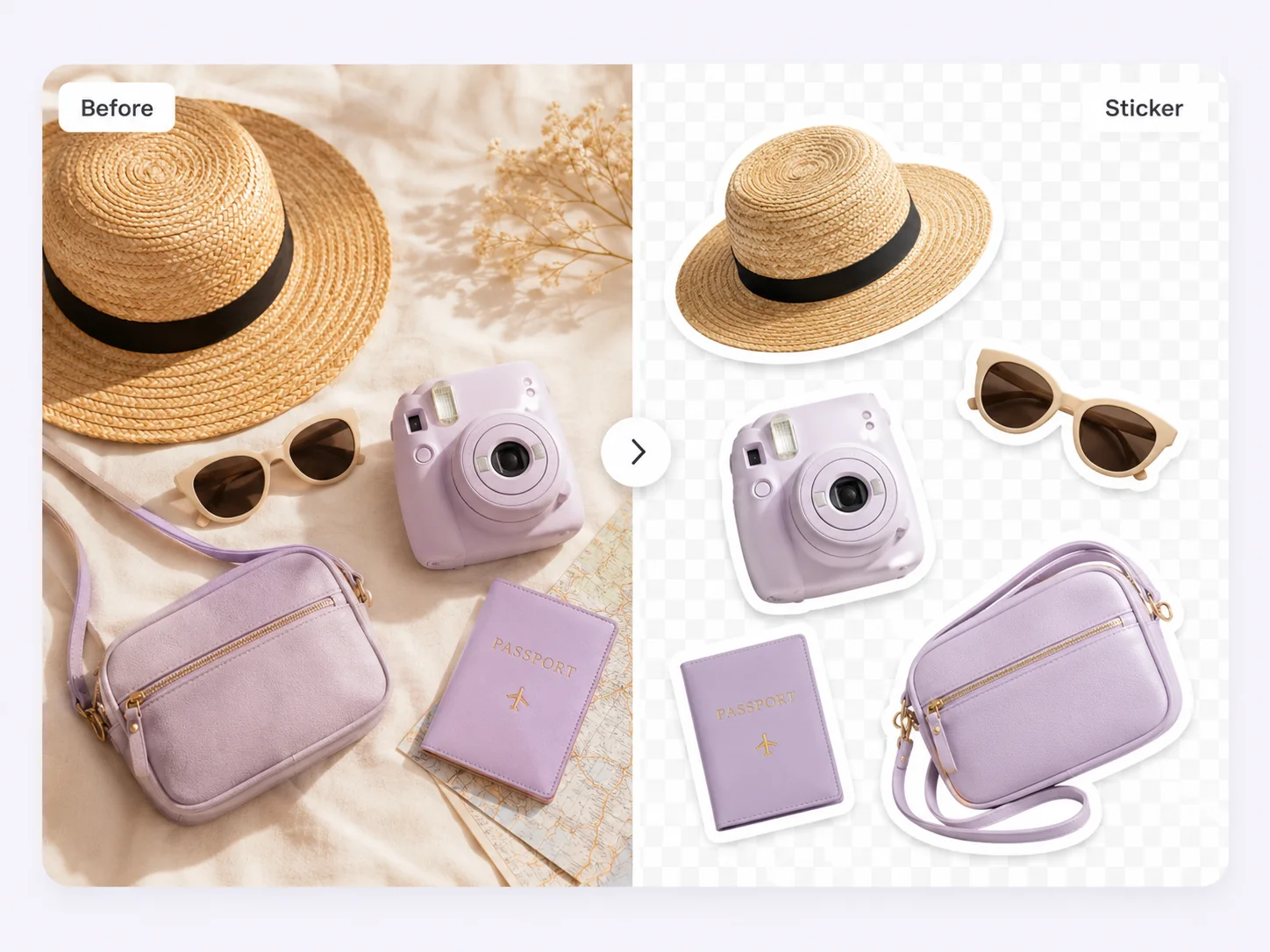
Sticker-ready cutouts without manual masking
AI background removal
Remove busy, indoor, outdoor, or patterned backgrounds in seconds while keeping the subject clean.
Transparent PNG export
Download assets with an alpha channel so they can sit cleanly on chat, social, shop, and design backgrounds.
Sticker outline controls
Use the workspace outline control to add a white or brand-color stroke around the cutout before export.
Works for people, pets, and products
Make profile stickers, pet stickers, product badges, reaction images, and creator thumbnails from one workflow.
No design app required
Create clean sticker assets directly in the browser without Photoshop, Figma, or manual pen-tool work.
Free to start
Upload an image, preview the cutout, tune the outline, and download the result without a complex setup.
Create a sticker cutout in 3 steps
Upload your image
Use a photo of a person, pet, product, drawing, or object. Clear subject edges give the best result.
Remove the background
BGRemover creates a transparent cutout. Keep the background transparent for PNG sticker use.
Add outline and download
Enable sticker outline in the workspace, adjust size and color, then export the final PNG.
Best uses for sticker cutouts
| Use case | Recommended output | Tip |
|---|---|---|
| Chat stickers | Transparent PNG with white outline | Use a thicker outline so the sticker reads on dark and light chat themes. |
| Creator thumbnails | PNG cutout with brand-color outline | Match the outline to your channel color for consistent thumbnails. |
| Product badges | Transparent PNG | Keep the product edge sharp and use a subtle outline only when needed. |
| Social posts | PNG sticker over a designed background | Export transparent, then place the cutout over your post layout. |
For sticker-style exports, start with a transparent background, then turn on the outline control in the workspace. White outlines work best for general stickers; brand colors work better for campaign or thumbnail assets.
Sticker examples
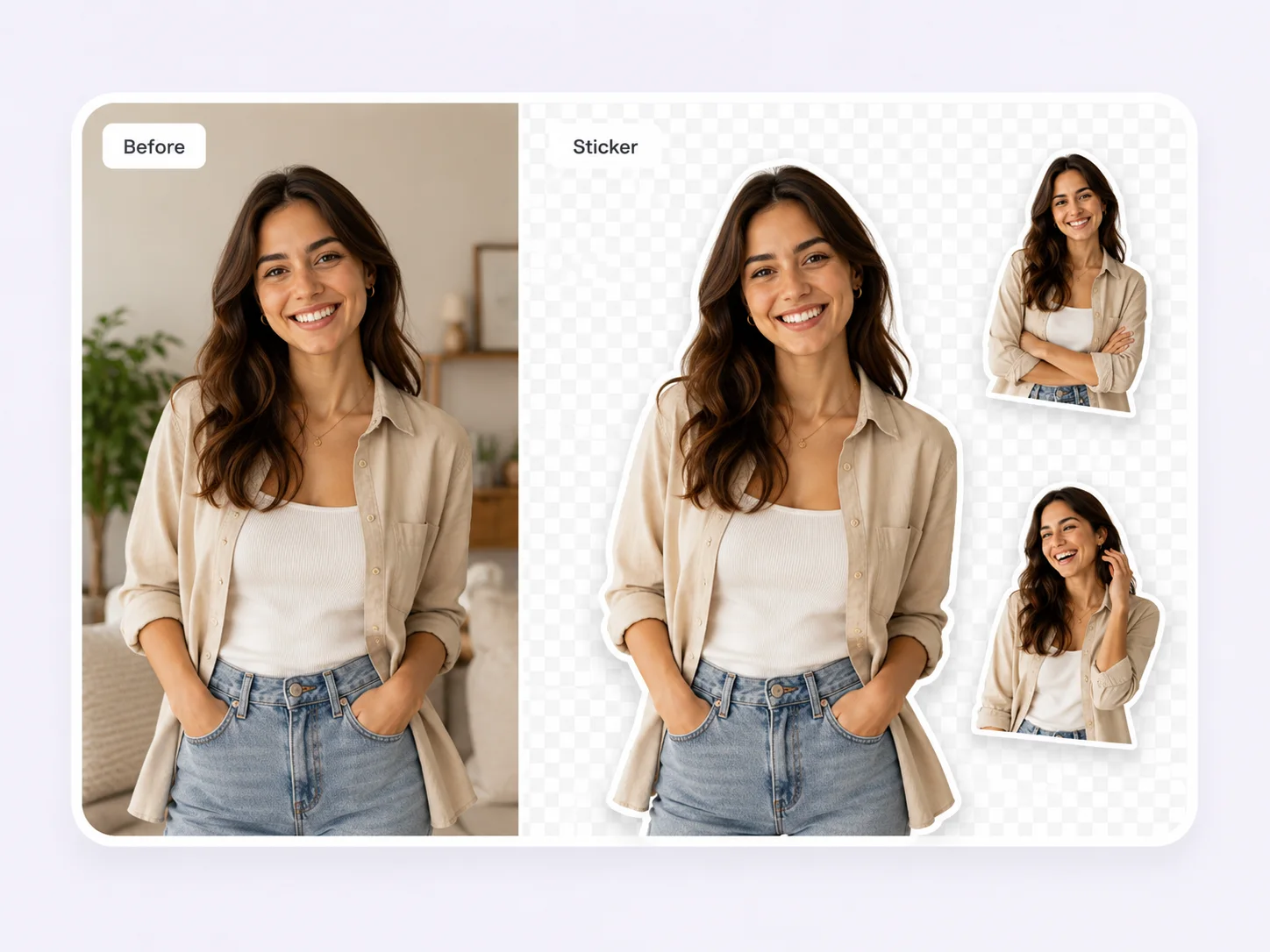
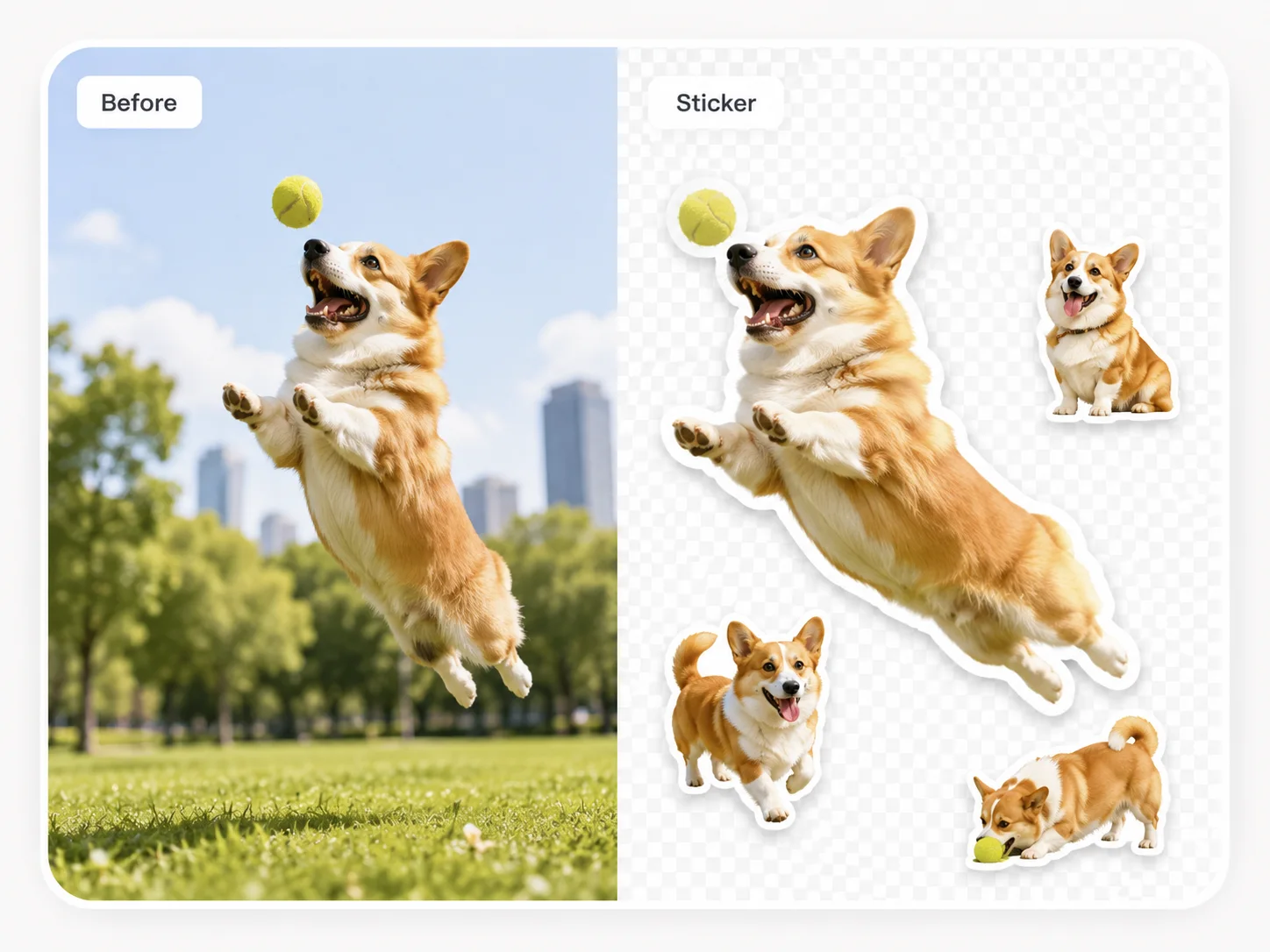
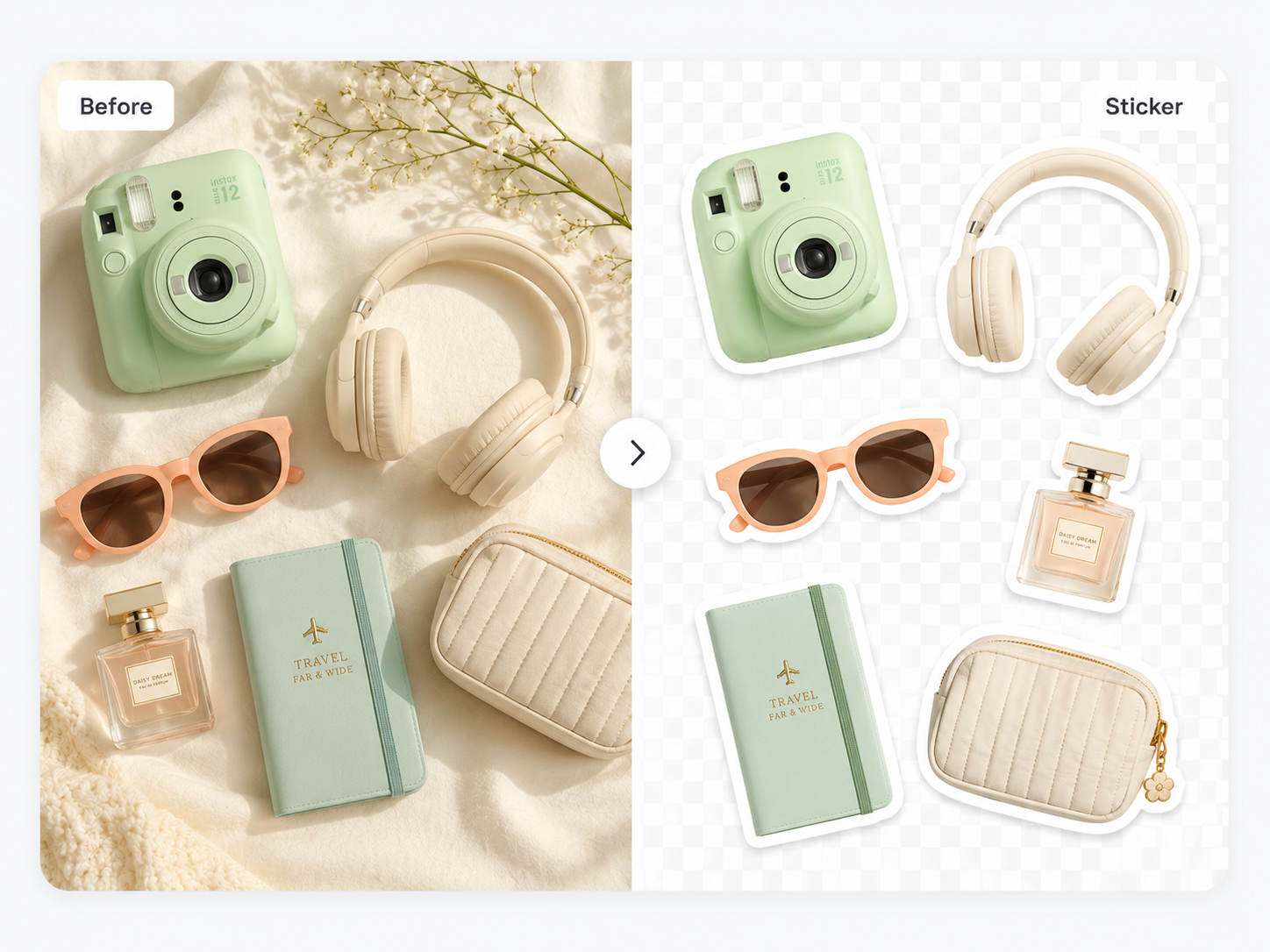
Common questions
Everything you need before you start
- Use PNG when you need transparency. PNG preserves the alpha channel, so your sticker can sit on different backgrounds without a box around it.
- Yes. After the background is removed in the workspace, enable the sticker outline control, choose the outline size and color, then download the composited result.
- Clear photos with a visible subject edge work best. People, pets, products, toys, and illustrations all work well.
- Yes. Download a transparent PNG and import it into your design, video, or social editing tool.
Make your sticker cutout now
Remove the background, keep transparency, add an outline, and export a clean PNG.