
How to Remove a Video Background Online
A practical workflow for short clips and creator assets.
An AI video background remover separates the foreground subject from a short clip so you can keep no background, add a solid color, or replace the scene with a custom image.
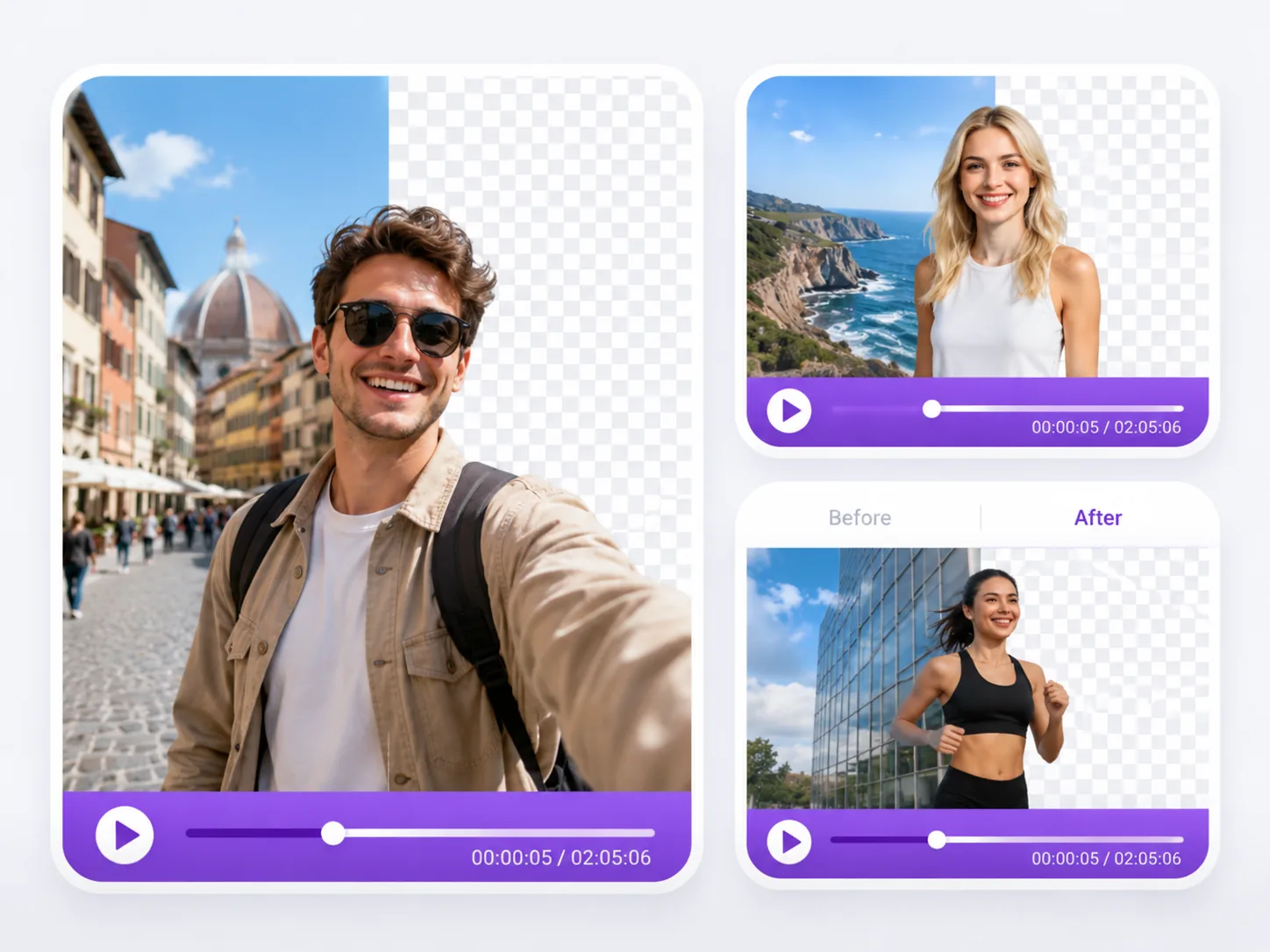
To remove a video background online, trim the clip to the part you need, upload it to the video background remover, choose transparent-style output or a replacement background, then review motion edges before downloading.
Remove a video background in 5 steps
Trim the clip first
Shorter clips process faster and keep the review step focused. Trim out unused intro, outro, or camera setup time.
Upload the video
Open the video template and upload a supported short clip from your device.
Choose the output background
Keep no background, choose a solid color, or upload a custom background image for the clip.
Review motion edges
Check hair, hands, product edges, motion blur, and fast gestures before using the result.
Download and edit
Export the processed clip and place it into your social, product, or creator editing workflow.
Best clips for AI video background removal
| Clip type | Works best when | Watch out for |
|---|---|---|
| Talking-head video | Face and shoulders stay in frame | Hair blending into the background |
| Product reel | The product edge is visible | Reflections and fast hand movement |
| Profile video | The camera is stable | Motion blur around hands or clothing |
| Creator asset | The subject has strong contrast | Busy background patterns |
This is not audio noise removal
A video background remover changes the visual scene behind the subject. It does not remove background noise, background music, or audio hiss from the clip. Use an audio editor for sound cleanup.
When to use image background removal instead
If you only need a thumbnail, product still, profile picture, poster frame, or transparent logo overlay, use the image background remover. It is faster and gives you a transparent PNG for design work.
Continue with video and image workflows
Video Background Remover
The main use-case page for short video background removal.
Free AI Background Remover HD Quality Checklist
Quality checks for still-image cutouts and transparent exports.
How AI Background Removers Work
Segmentation, masks, alpha mattes, and edge cleanup.
Video background remover FAQ
Quick answers before you upload.
- Yes. Open the video background remover template, upload a short clip, choose the output background, review the result, and download the processed video.
- Use short clips with steady framing, clear lighting, visible subject edges, and limited motion blur.
- Yes. You can keep no background, pick a solid color, or use a custom replacement background for the clip.
- No. This workflow removes the visual background. It does not remove audio noise, hiss, or background music.
Remove a video background now
Open the video template, upload a short clip, and choose the background you need.