
01
AI background removal
Remove busy, indoor, outdoor, or patterned backgrounds in seconds while keeping the subject clean.
Transparent PNG · Clean outline · Ready for Messages on iPhone
Loading upload service...
This page is for iPhone users who want a reusable photo sticker with a cleaner cutout. Upload a portrait, pet, product, or object, remove its background, add an outline, and save the PNG before adding it to the sticker drawer in Messages.
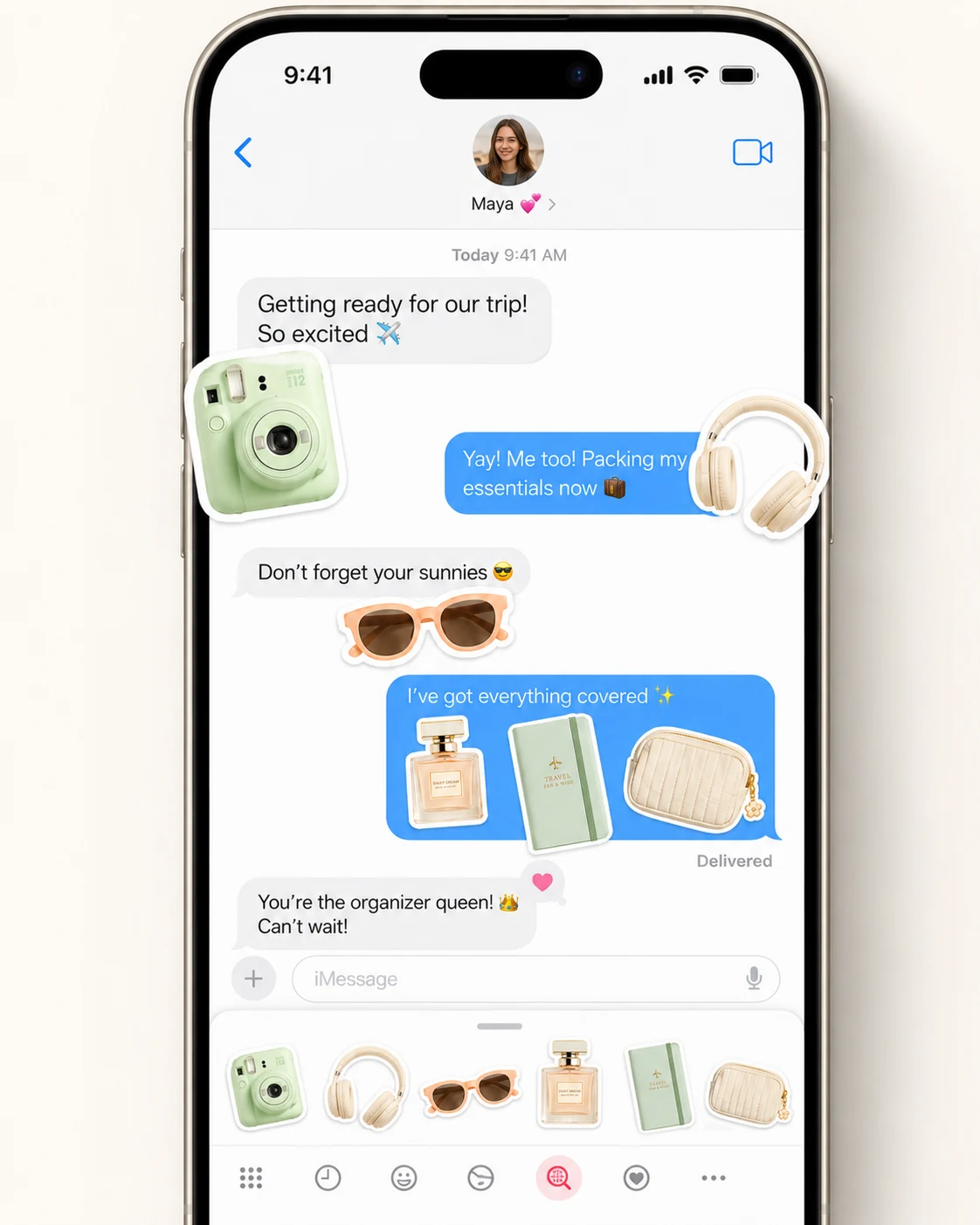
Keep the subject reusable outside iMessage while preserving transparency and a visible edge.
Remove busy, indoor, outdoor, or patterned backgrounds in seconds while keeping the subject clean.
Download assets with an alpha channel so you can make a cutout sticker that sits cleanly on chat, social, shop, and design backgrounds.
Use the workspace outline control to add a white or brand-color stroke around the cutout before export.
Make profile stickers, pet stickers, product badges, reaction images, and creator thumbnails from one workflow.
Create clean sticker assets directly in the browser without Photoshop, Figma, or manual pen-tool work.
Upload an image, preview the cutout, tune the outline, and download the result without a complex setup.
Create the cutout in BGRemover, then finish the sticker inside Apple Photos or Messages.
Choose a portrait, pet, product, or object with a visible subject. A sharp source photo produces a cleaner sticker edge.
Let BGRemover isolate the subject. Review hair, fur, hands, and small accessories before continuing.
Enable the sticker outline, choose a visible width and color, then download the transparent PNG to your iPhone.
Open the saved image in Photos, touch and hold the subject, and choose Add Sticker. You can also open the sticker drawer in Messages and add it there.
An iMessage sticker maker turns the main subject of a photo into an image you can place in a conversation. Apple can lift subjects directly from many photos, while BGRemover gives you a separate transparent PNG when you want to review the cutout, add a consistent outline, or reuse the same sticker in another app.
BGRemover does not install a sticker pack or place the file inside Messages automatically. It prepares the image. After downloading the PNG, use the sticker controls in Photos, the iPhone keyboard, or Messages to add it to your personal sticker collection.
| Method | Best for | Output |
|---|---|---|
| Apple Photos | Fast stickers from a clear iPhone photo | Sticker saved in the Apple sticker drawer |
| BGRemover | Cleaner edge review, custom outline, and cross-app reuse | Transparent PNG file |
| Live Photo | Animated Live Stickers | Animated sticker created with Apple tools |
Use the built-in iPhone option when the subject lifts cleanly and you only need a quick personal sticker. Use BGRemover when the original background is busy, when you want a predictable white or brand-color outline, or when the same cutout must also work in a social post, thumbnail, presentation, or design file.
For an animated sticker, start with a Live Photo and use Apple's Live Sticker workflow. BGRemover currently prepares static transparent PNG stickers, so it is best suited to still photos and reusable image assets.
What to know before adding a photo cutout to Messages.
Remove the background, add a clean outline, and save a transparent PNG before adding it to Messages.